
Schwack Cinema
Pay for your movie tickets in seconds
Book your seats on cinema.mv or in the Schwack app, then settle the booking in Payer. Paste your confirmation, check the details, and the ticket price comes out of your wallet, no card and no cash at the counter.


Payer is licensed by the Maldives Monetary Authority as a Payment Service Provider under the National Payment System Act.
Why pay for cinema tickets with Payer
The booking is the fun part. Paying for it before the seats are released is the part that goes wrong, and that's the part this fixes.
- Beat the Pay Before deadline
- Your seats are only held until the time on your Schwack confirmation. Paying in the app takes a few taps from wherever you are, so the row you picked stays yours.
- Paste the SMS, skip the typing
- Fill from confirmation SMS reads the hall, the booking reference, the show date and time and the ticket price straight out of the Schwack message.
- Malé and Hulhumalé
- Both Schwack halls are supported. Pick the cinema your booking is for, or let the autofill select it from your confirmation.
- No card, no cash run
- The ticket price comes out of your Payer wallet balance. Nothing to type in, nothing to carry, and no trip to the counter before the show.
- The amount is filled in for you
- Payer names the cinema and the merchant, Schwack Maldives Pvt Ltd, and shows the ticket price from your booking before anything leaves your wallet.
- A receipt that stays put
- Every payment lands in your Payer History with its reference, next to your bills and recharges, so it's still there when you need to find it.
Step by step
How to pay for a Schwack Cinema booking
Five screens, start to finish. You'll need your Schwack confirmation and enough balance in your Payer wallet.
- 01
Book your seats, then open Payer
Pick your film, showtime and seats on cinema.mv or in the Schwack app, the same way you always have. Schwack sends you a confirmation with your booking reference and the time you need to pay by.
Then open Payer, find the Make payments section on the home screen, and tap Schwack.
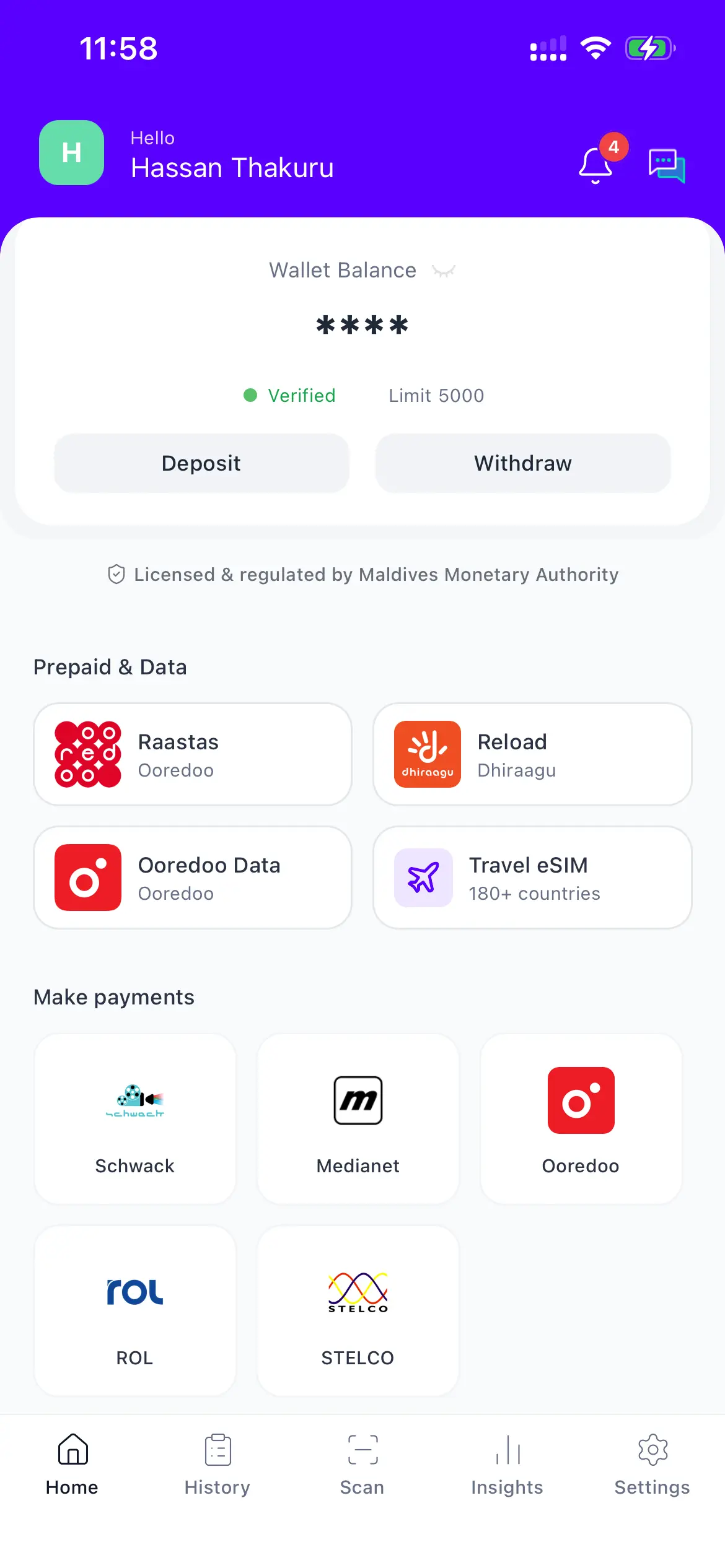
Schwack sits in the Make payments section of the Payer home screen. - 02
Choose your cinema
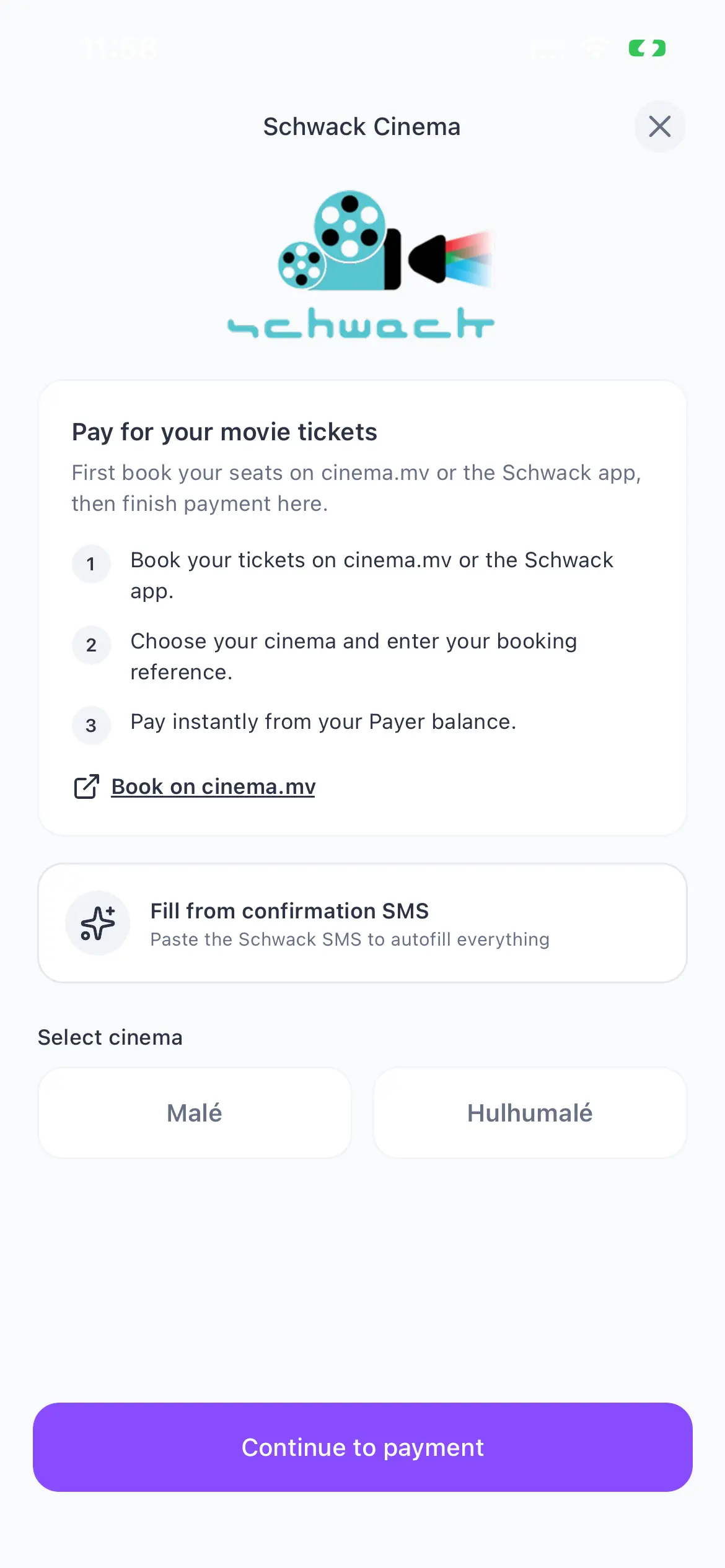
The Schwack Cinema screen is for paying a booking you have already made. Pick the hall your tickets are for, Malé or Hulhumalé.
In a hurry? Tap Fill from confirmation SMS and let Payer read the details out of the Schwack message instead of typing them.
Haven't booked yet? The screen links straight to cinema.mv so you can pick your seats first.
Select Malé or Hulhumalé, or autofill from your confirmation SMS. - 03
Paste your confirmation SMS
Tap Paste from clipboard and drop in the whole booking message from Schwack. Payer picks out the cinema, the booking reference and the ticket price for you.
Tap Fill details and every field on the form is filled in.
The autofill is a convenience, not a requirement. You can always type the reference, date and time yourself.
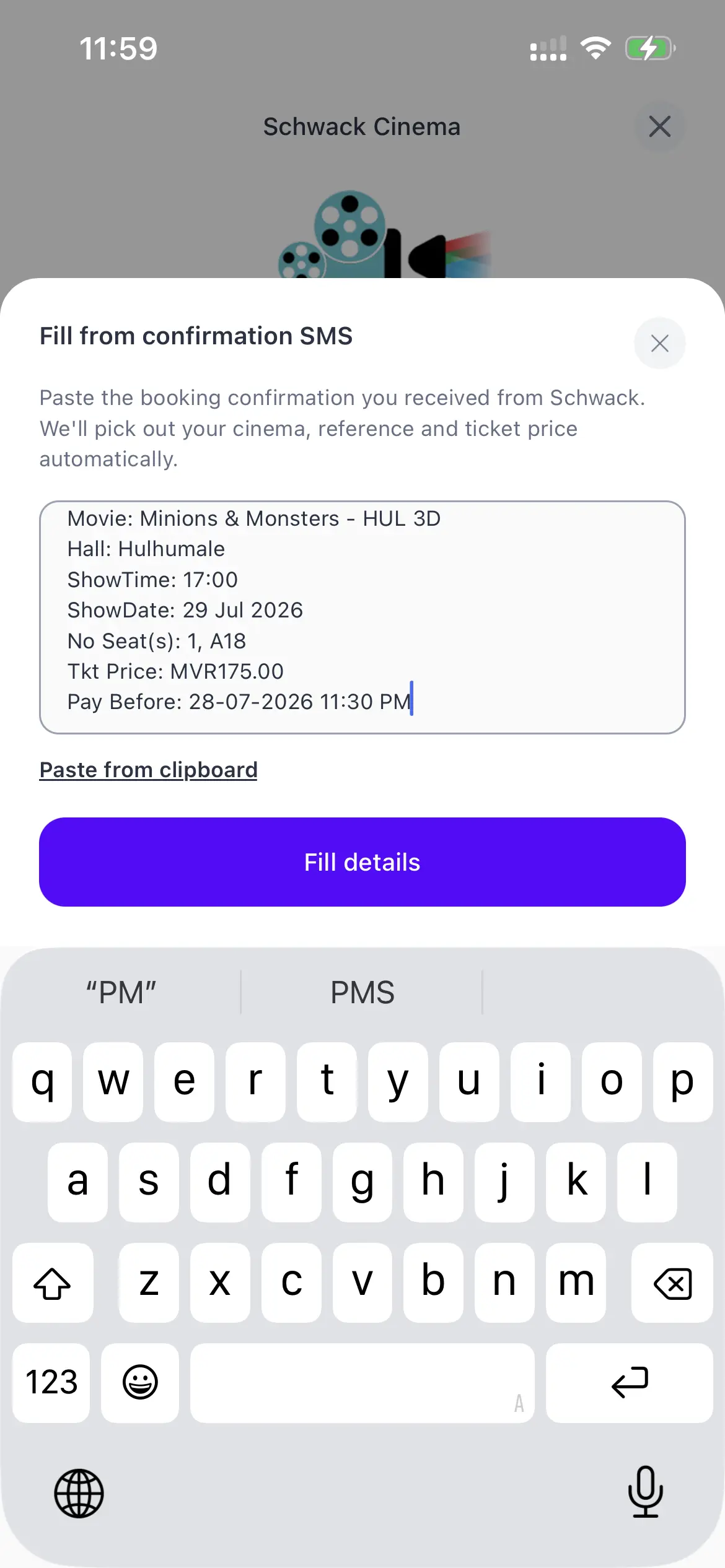
Paste the Schwack booking SMS and tap Fill details. - 04
Check the booking details
Payer shows what it read back to you: the film, the show date and time, and your seats, with the booking reference underneath.
Give it a quick look against your confirmation, then tap Continue to payment.
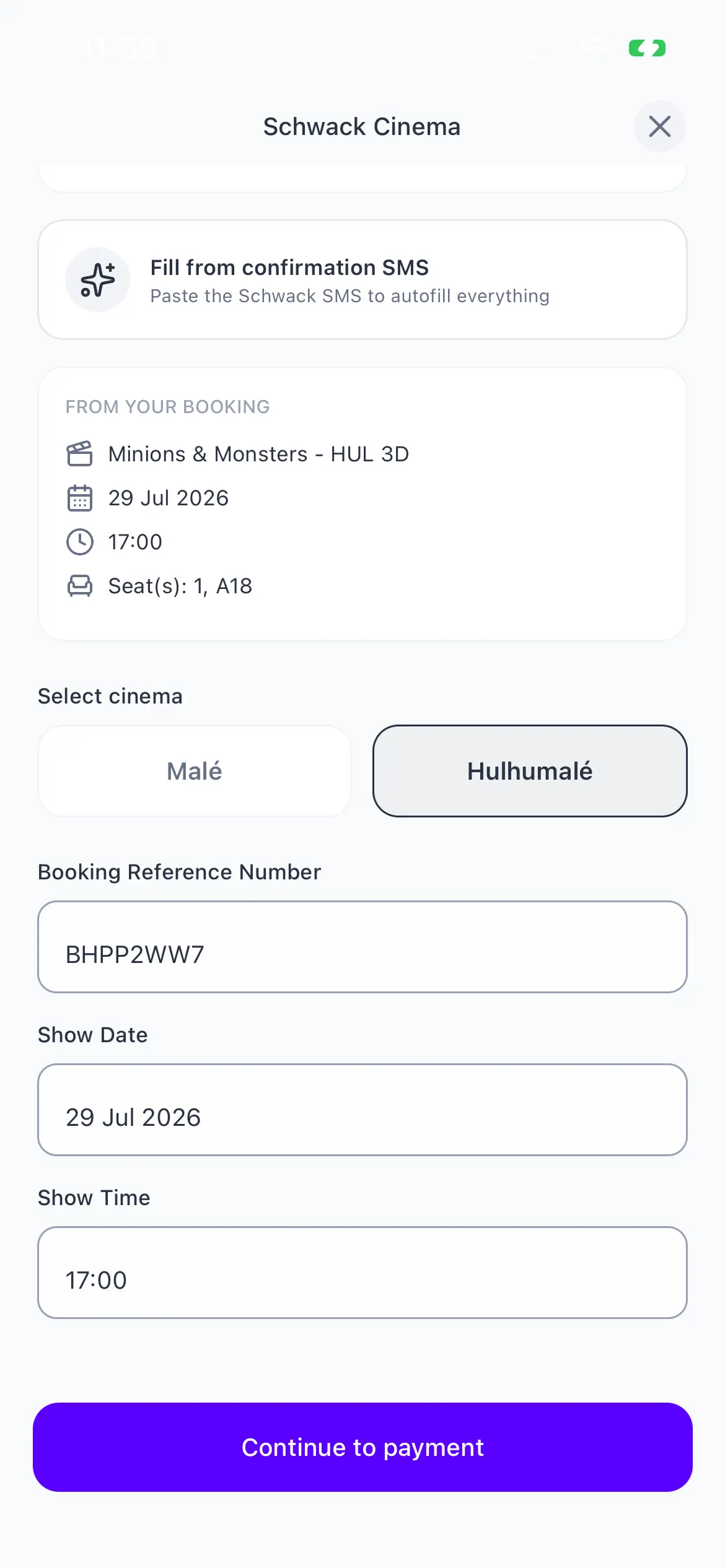
Your booking, read back before you pay. - 05
Pay from your Payer balance
The payment screen names the cinema and the merchant, Schwack Maldives Pvt Ltd, and shows the ticket price from your booking. Tap Pay to send it from your Payer wallet.
That's it. No card details, no cash at the counter, and the payment appears in your Payer History with the rest of your transactions.
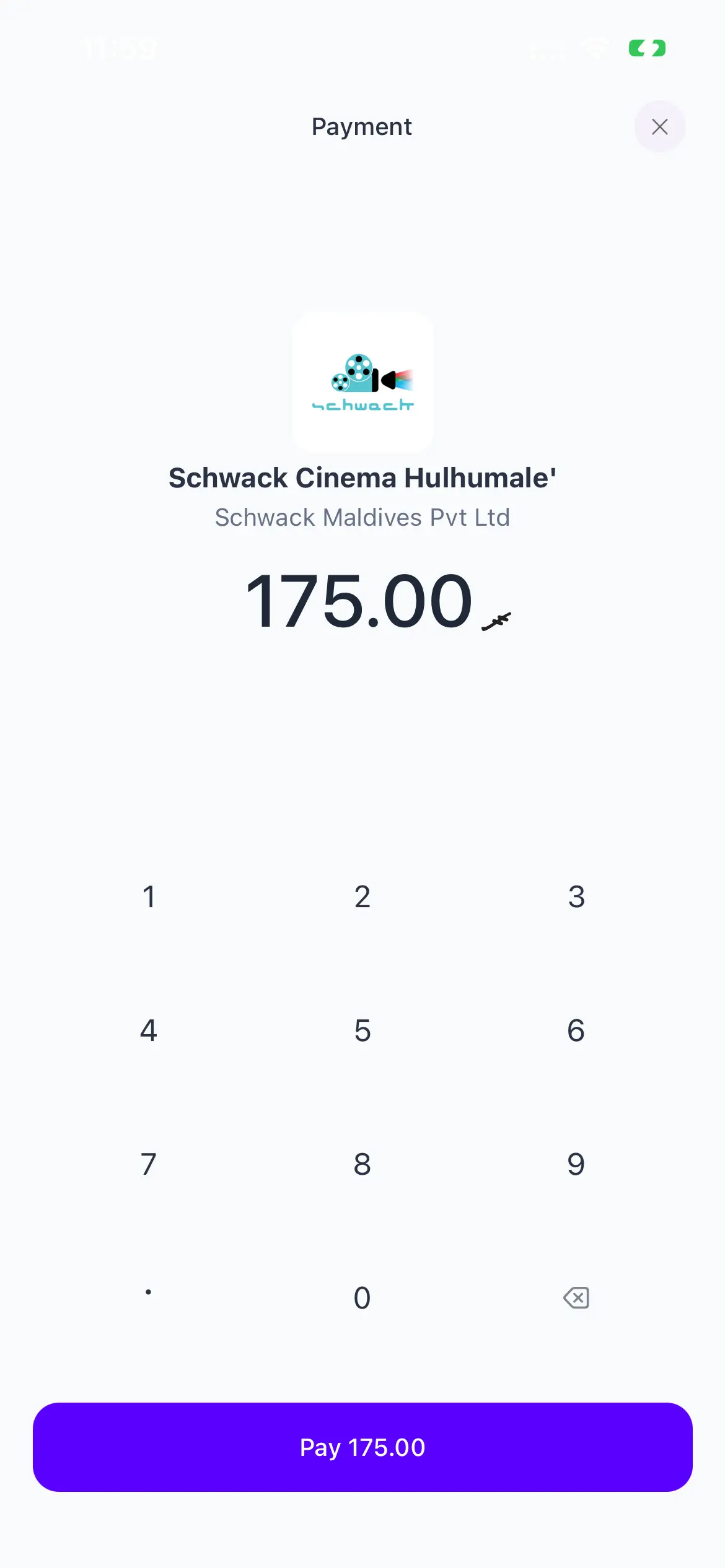
The ticket price is already filled in. Tap Pay and you're done.
Good to know
- Payer pays for a booking, it doesn't make one. Choose your film, showtime and seats on cinema.mv or in the Schwack app first.
- Pay before the Pay Before time on your confirmation, otherwise Schwack can release the seats you picked.
- Both Schwack halls are supported: Malé and Hulhumalé. Pick the one your booking is for.
- The money comes out of your Payer wallet, so top up first if your balance is short.
Wallet running low? Top up by bank transfer first, it's usually credited instantly.
Schwack Cinema payments: your questions
Can I book cinema tickets in the Payer app?
No. You choose your film, showtime and seats on cinema.mv or in the Schwack app, and Payer is where you pay for that booking. Payer never picks your seats, so you always see the seat map you're used to.
How long do I have to pay for a Schwack booking?
Until the Pay Before time printed on your Schwack confirmation. Pay after that and the seats may already have been released, so it's worth settling it as soon as the message arrives. Paying in Payer takes a few taps.
Which Schwack cinemas can I pay for?
Both. Choose Malé or Hulhumalé on the Schwack Cinema screen, matching the hall on your booking. If you autofill from the confirmation SMS, Payer selects the cinema for you.
Do I need a card to pay for movie tickets?
No. The ticket price comes out of your Payer wallet balance, so there are no card details to enter and nothing to carry to the counter.
What if I don't have enough in my Payer wallet?
Top up first, then come back and pay. A deposit is a bank transfer from Bank of Maldives or Favara plus a receipt upload, and it's usually credited instantly.
Where do I find my booking reference number?
It's in the confirmation Schwack sends you after you book. You can type it into Payer, or paste the whole message into Fill from confirmation SMS and let Payer pull out the reference, the cinema and the ticket price.
What if the autofill doesn't read my message?
Fill the form in by hand. Choose the cinema, enter the booking reference, and set the show date and time from your confirmation. The payment works exactly the same way.
Where does my receipt go?
Into your Payer History, alongside every other payment you've made, so you can find the transaction again without digging through messages.
Still stuck? See all questions or talk to a human.
Let's get you started.
Pay bills, recharge and pay in store straight from your phone, with a licensed payment service provider behind every transaction.
Free to download. No monthly fees, no hidden charges.